
How to Log In to a LinkedIn Account: 2FA Key, Cookies and the Mailbox
October 16, 2026
BuyLinkedInAccounts Support· Customer support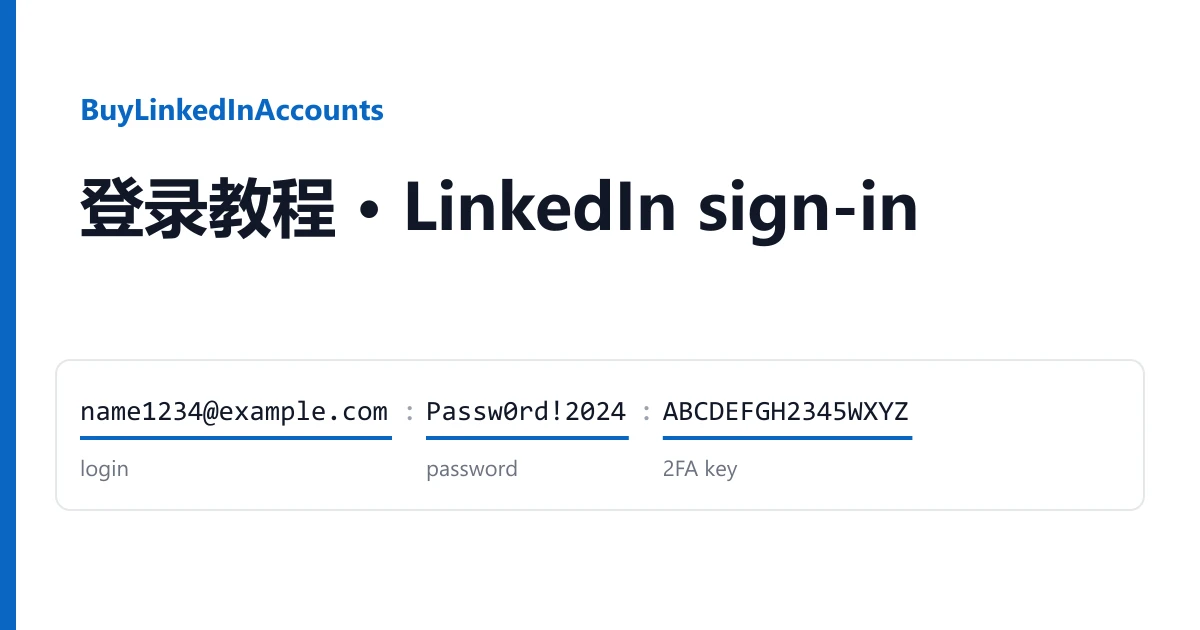
A LinkedIn account from this shop reaches you as text on your order page: one line per account, sometimes followed by a block of cookies. There are two ways in. Accounts with a 2FA key are opened with the password and a six-digit code; session kits can also be opened by importing cookies. In both cases the mailbox that comes with the account is what lets you keep it.
What can be in your delivery
- Login: the email address the LinkedIn account was registered with. It is always the first field.
- Password: the LinkedIn password, right after the login.
- 2FA key: capital letters and digits, on listings marked 2FA. It makes the sign-in code; it is not the code.
- Mailbox password: on listings that include the email, so you can open that mailbox.
- Profile link or name: on some listings, the address of the profile (
linkedin.com/in/...) or the name part of it. For reference only. - User agent and cookies: on session kits, the browser description and the saved, signed-in session.
The order of the fields is given in the listing description. Fields are separated by colons in most deliveries.
Route 1: login, password and 2FA key
Most 2FA listings deliver a line like one of these:
name1234@example.com:Passw0rd!2024:ABCDEFGH2345WXYZ
login : password : 2FA key

name1234@example.com:Passw0rd!2024:ABCDEFGH2345WXYZ:https://www.linkedin.com/in/first-last-1234
login : password : 2FA key : profile link- Go to linkedin.com and choose Sign in. Enter the login and the password.
- LinkedIn asks for a verification code from your authenticator app. Open https://checkkit.net/en/online-2fa-code-generator, paste the 2FA key and copy the six digits.
- Enter the code. It changes every 30 seconds, so if LinkedIn says it is wrong, make a new one and check that your computer's clock is set automatically.
Store the key next to the password. On a new device LinkedIn will ask for a code again, and until you move two-step verification to your own app, the key is the only way to produce it.
Route 2: cookies with Cookie-Editor
Session kits (the listings that say "user agent + cookies included", usually registered from Germany, France or the USA with an Outlook mailbox) also carry a signed-in session. You can open the account from it without typing the password:
- Add the Cookie-Editor extension to Chrome, Edge or Firefox.
- Open linkedin.com, click the Cookie-Editor icon and press Import.
- Paste the cookie block from your delivery (it starts with
[{and ends with}]), confirm, and reload the page.
The user agent next to the cookies only records which browser the session was saved in; you do not enter it anywhere. A cookie session ends when the password changes or LinkedIn signs it out, so treat it as the first way in and use the login and password from then on.
The mailbox that comes with the account
Most LinkedIn listings include the email the account was registered with: Outlook or Hotmail on most, Gmail, an AT&T mailbox at currently.com or a rambler.ru address on others. The title says which. Open it with the login and the mailbox password from your line, at the provider's own website.
Do this before you change anything on LinkedIn. When LinkedIn sees a sign-in from a new place it may email a verification PIN, and password resets and security alerts arrive there too. A few listings say LinkedIn may also ask for a phone number by SMS; in that case have a number of your own ready.
Making the account yours
Open Settings, then Sign in & security, and work through it in this order:
- Add an email address you control, confirm it, and make it the primary address.
- Change the password.
- Turn two-step verification off and on again with your own authenticator app, and save the new recovery codes.
- Under Where you're signed in, sign out every session you do not recognise.
Keep the original line until the warranty window has passed. Support needs it to look up the account.
If LinkedIn will not let you in
Sign in to each account within the warranty window printed on its listing. If the password is refused, the account is restricted, or LinkedIn asks for a check that the listing did not mention, open a ticket from your order page before the window ends. Say which line it is and attach a screenshot of what LinkedIn shows. You get a replacement from the same listing, or a refund if it has run out. Signing in never voids the warranty.
Listings that say "may require SMS" or "temp blocked" are sold in that state, so that check is not a fault. A restriction caused by bulk or automated activity, such as mass invitations, mass messages or data collection tools, is not covered, and that kind of use breaks LinkedIn's terms and ours. LinkedIn does not allow accounts to be transferred and can ask any account to verify itself; use the accounts within its rules and the law.
Looking for a different kind of account? The listings are on our home page.